Artifact Libraries
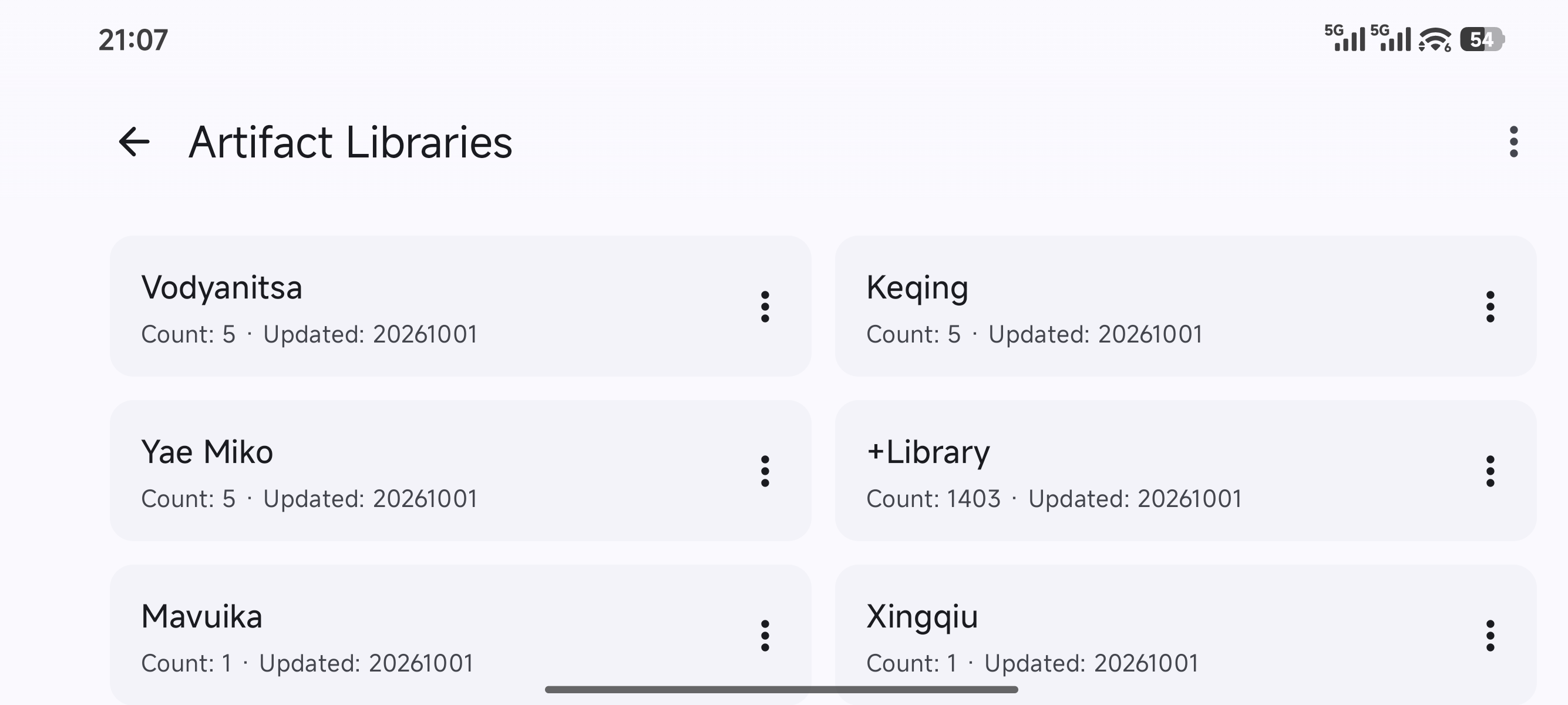
Artifact libraries store artifacts collected through screen recognition, file import, or manual entry, keeping your builds organized. You can create as many libraries as needed.
Importing Data
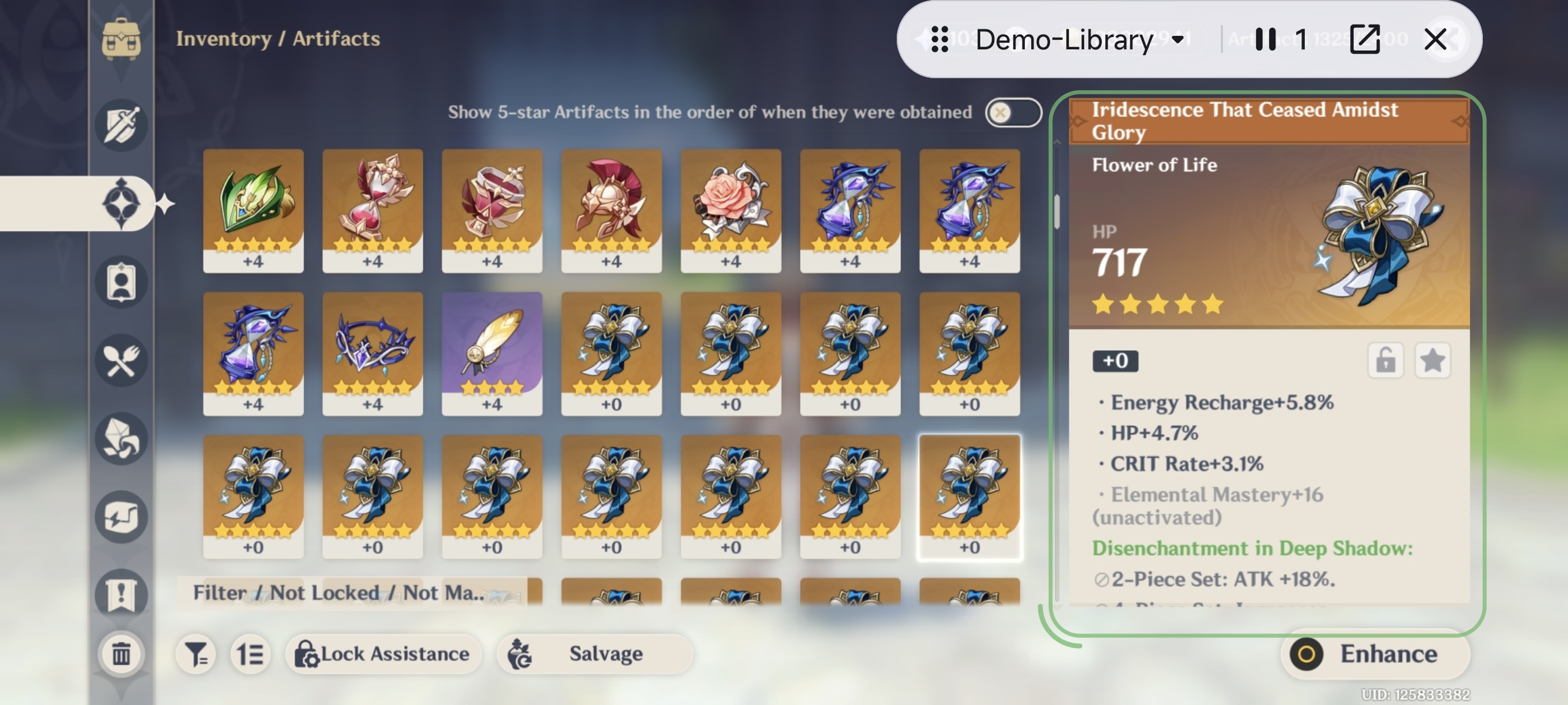
Section titled “Importing Data”The app can recognize artifacts directly from the game screen through a floating overlay and save them to your target library. The recognition model currently supports English, Simplified Chinese, Traditional Chinese, and select Latin-script languages; if your game uses another language, switch to a supported one in the in-game settings first.
- Open the top-right menu on the Artifact Libraries list or inside a library, choose Screen Recognition, and pick your target library.
- Tap or click Launch Recognition Overlay, then switch to Genshin Impact and open the artifact screen.
- Resize and position the recognition frame around the full artifact details, then press
▶on the overlay to begin. - Browse through your artifacts—newly recognized pieces are saved automatically to your library, and you can pause or close the overlay at any time.
You can import existing artifact data from external files:
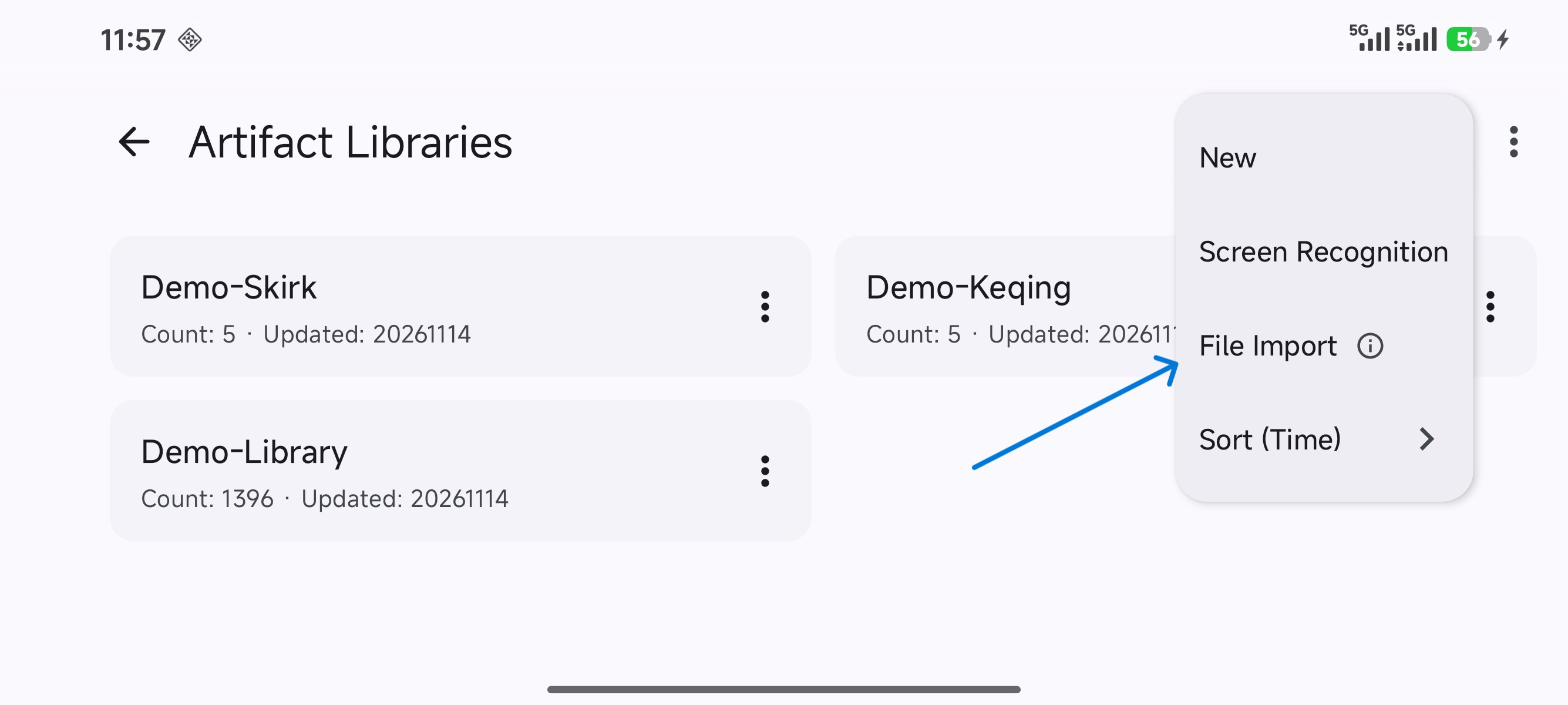
- Open the Artifact Libraries list page.
- Open the top-right menu and select File Import.
- Choose your file. Both GOOD format (JSON) and Genshin ATool TOML files are supported.
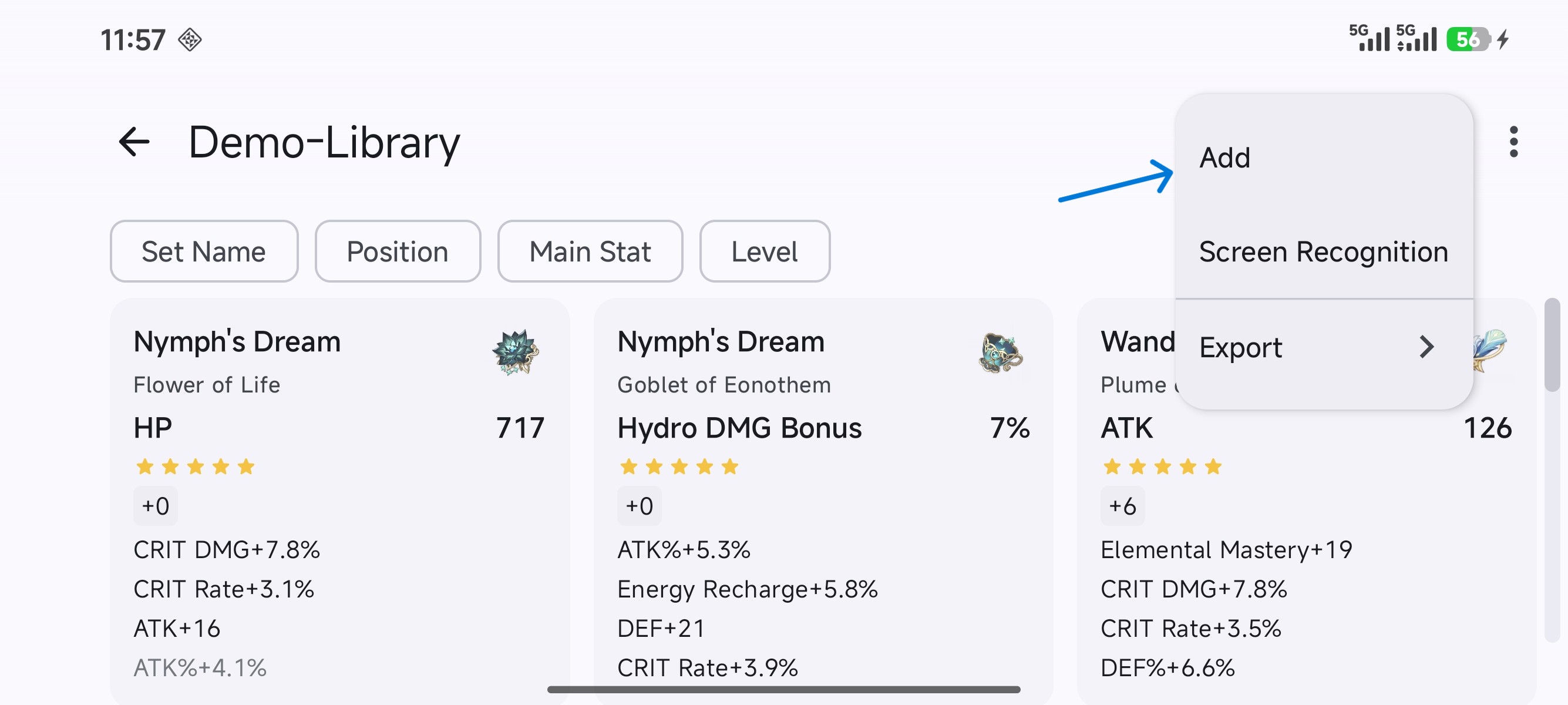
- Manual Add: On the library details page, open the top-right menu and select Add, then pick the set, slot, main stat, and sub-stats.
- Edit Stats: Click any artifact card to adjust its level or fine-tune sub-stat values.
Exporting Data
Section titled “Exporting Data”You can export artifact library data to a file:
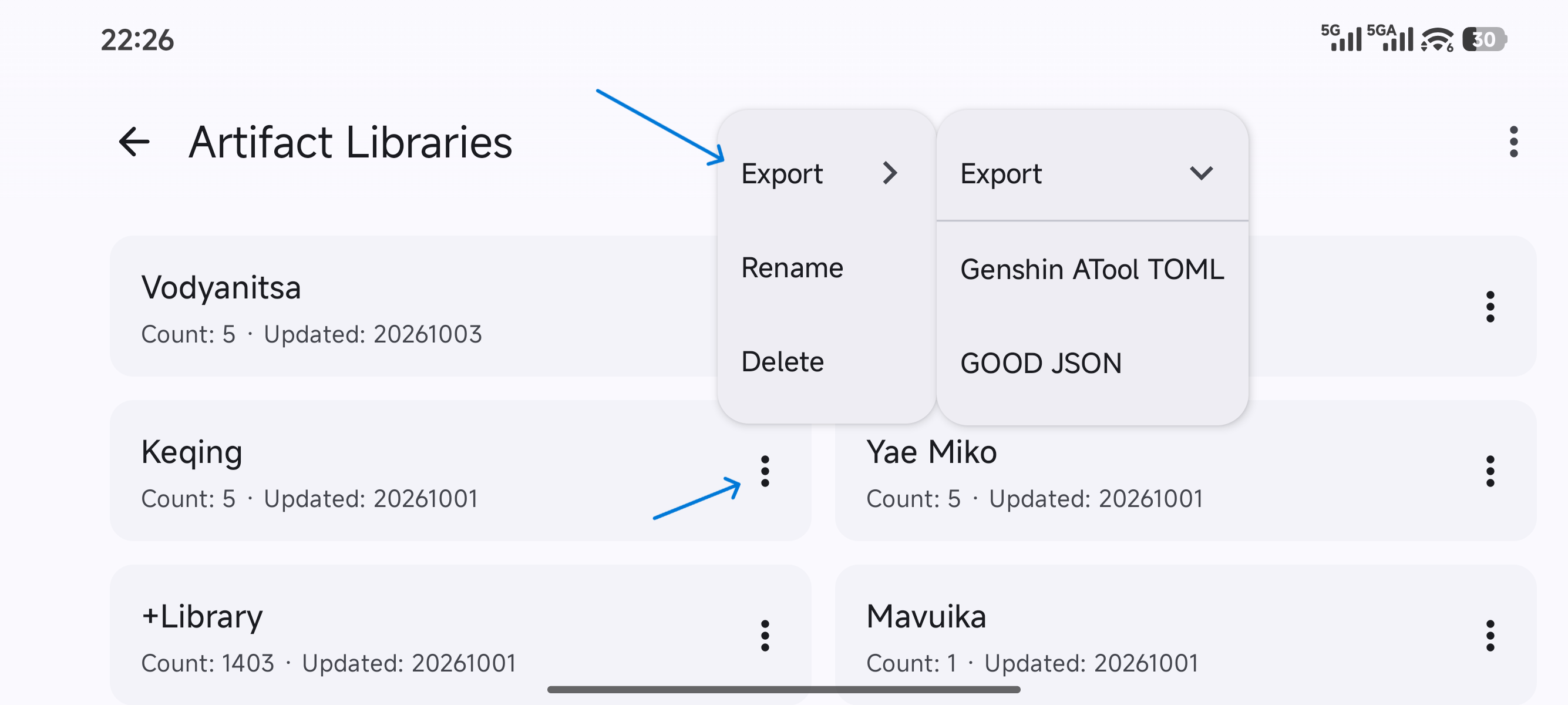
- Export to GOOD Format: Export as GOOD format (JSON), making it easy to import into third-party tools like Genshin Optimizer.
- Export to TOML Format: Export as Genshin ATool TOML format for easy backup and migration between devices.